
Episode 1 of the series Docker: Internals to Production
What a container really is: namespaces, cgroups and layered filesystems
7 min read

You type docker run every day. But what actually happens when you do? This first lesson of Docker: Internals to Production opens the box. There is no magic inside, just three features of the Linux kernel working together.
Once you see them, a lot of confusing production behaviour suddenly makes sense: the mysterious exit code 137, containers that take ten seconds to stop, data that disappears after docker rm, and Python apps that start far too many workers.
The one-sentence definition
A container is an ordinary Linux process that the kernel has been told to lie to.
The process believes it has its own machine: its own process ID 1, its own hostname, its own network and its own root filesystem. In reality it is one more entry in the host's process table, sharing the host kernel with every other container on that machine.
Three kernel features build the illusion
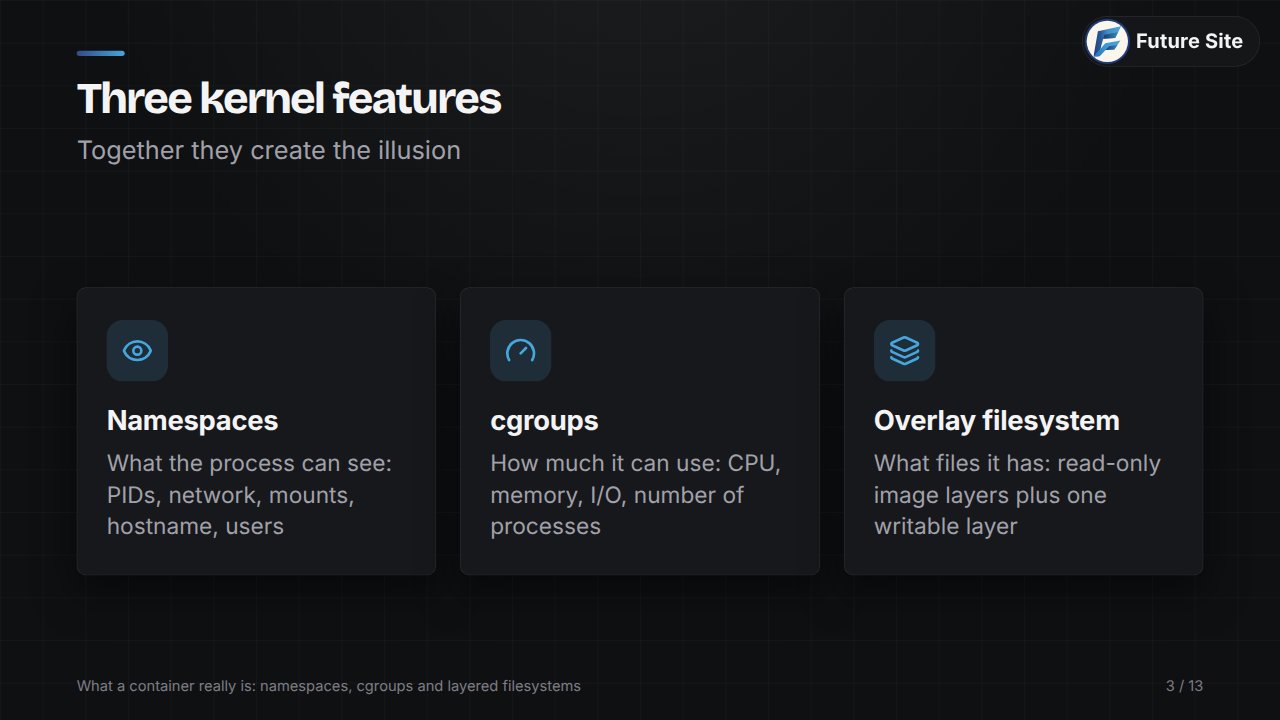
| Feature | Decides | Examples |
|---|---|---|
| Namespaces | What the process can see | PIDs, network, mounts, hostname, users |
| cgroups | How much it can use | CPU, memory, disk I/O, number of processes |
| Overlay filesystem | What files it has | Read-only image layers plus one writable layer |
Keep this table in mind: every section below is one row of it.
Containers vs virtual machines
A virtual machine is a separate house with its own foundations: its own guest kernel. The isolation is strong, but each VM carries a full operating system and takes seconds to minutes to boot.
A container is an apartment in a shared building. Everyone shares the foundations (the kernel), but each flat has its own locked door. It starts in milliseconds, because starting it just means starting a new process, and its overhead is the overhead of a normal process.
The flip side: Linux containers need a Linux kernel. That is why Docker Desktop on a Mac quietly runs a small Linux VM. macOS has no Linux kernel to share.
From docker run to a running process
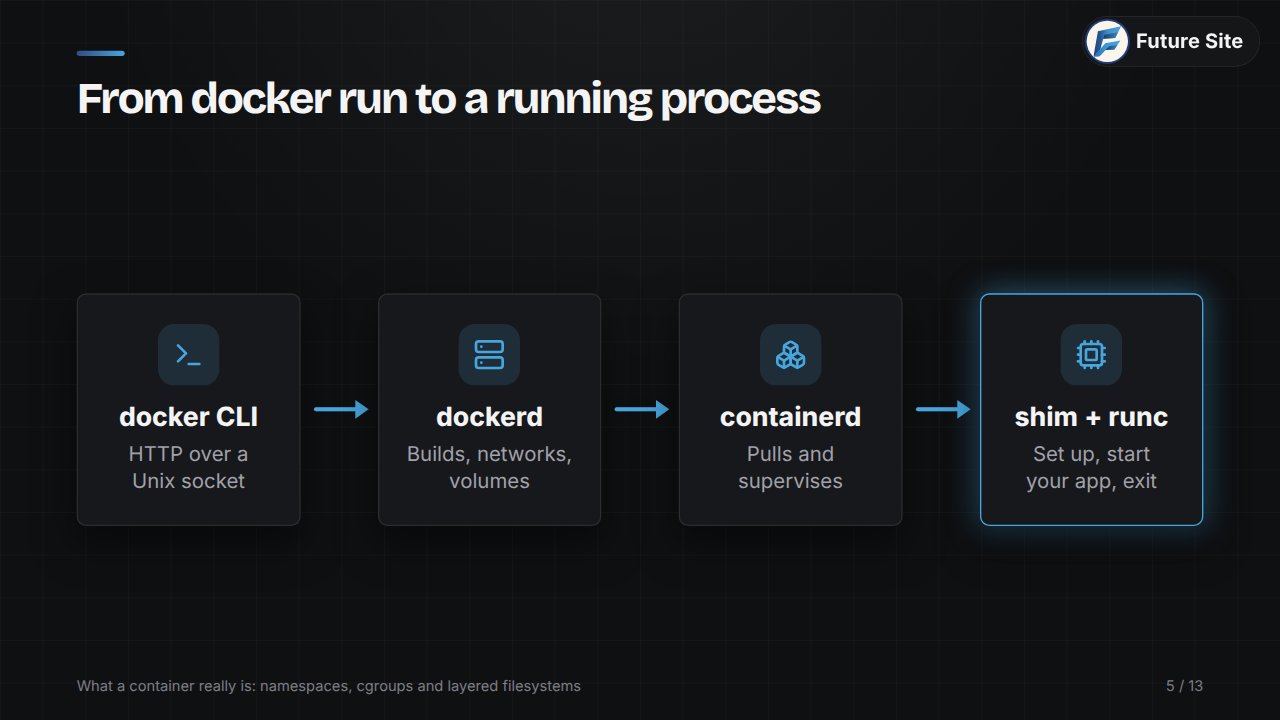
The docker command is only a client. It sends HTTP requests to the daemon over a Unix socket.
- dockerd handles the high-level features: builds, networks, volumes.
- containerd pulls the image and supervises the container. Kubernetes talks to containerd directly, without dockerd.
- A small shim and then runc create the namespaces and cgroups, mount the filesystem and start your program. Then runc exits.
Nothing sits between your app and the kernel once it is running. That is why containers run at native speed.
Namespaces: what a process sees
Docker gives every container a new namespace of most types:
- PID: your main process is PID 1 and cannot see the host's processes.
- NET: its own interfaces, so port 80 inside does not clash with port 80 on the host.
- MNT: its own mount table and root filesystem.
- UTS: its own hostname.
- USER: maps root inside to an ordinary user outside, but it is off by default. Root in a default container is still root on the kernel.
A useful trick: you can join another container's network namespace on purpose and debug it from the inside.
docker run --rm -it --network container:web nicolaka/netshoot
cgroups: what a process can use
Namespaces limit nothing. Without cgroups, a container could still use all the memory on the host. Each resource flag of docker run simply writes a file in the cgroup v2 hierarchy:
docker run -d --name web \
  --memory=256m \
  --cpus=0.5 \
  --pids-limit=100 nginx

docker exec web cat /sys/fs/cgroup/memory.max
# 268435456
docker exec web cat /sys/fs/cgroup/cpu.max
# 50000 100000
| Flag | cgroup file | Meaning |
|---|---|---|
--memory=256m |
memory.max |
Hard memory limit |
--cpus=0.5 |
cpu.max |
50 ms of CPU every 100 ms |
--pids-limit=100 |
pids.max |
Stops fork bombs |
You can read the limits from inside the container, and the kernel enforces them.
Over the limit: kill or throttle
This is the behaviour you must know in production, because memory and CPU fail in completely different ways.
Memory: OOM kill. Go over memory.max and the kernel's OOM killer sends SIGKILL. No warning, no cleanup. The container exits with code 137 (128 + signal 9), and docker inspect shows "OOMKilled": true.
CPU: throttling. Go over cpu.max and nothing dies. The process is paused until the next period. You see it as strange p99 latency spikes, and as a growing nr_throttled counter in cpu.stat.
Where the files come from
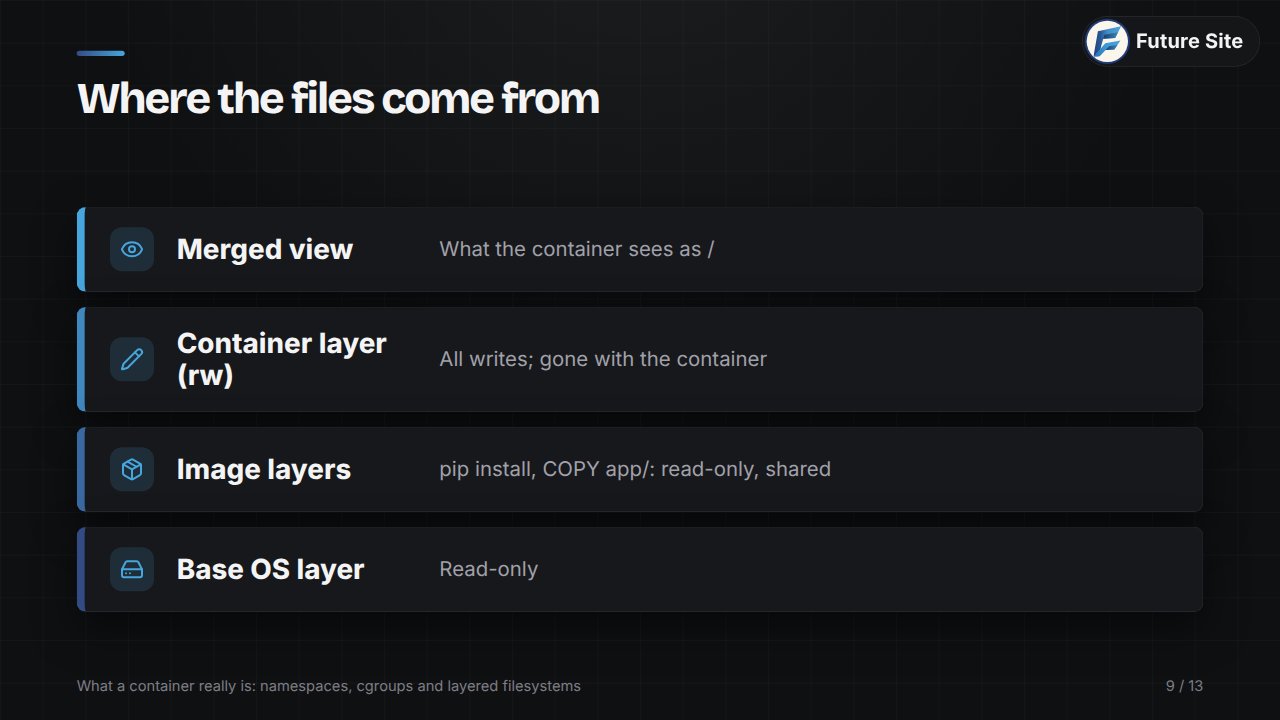
An image is not a disk image. It is an ordered stack of read-only layers, each one a tarball of changes: the base OS, then your installed packages, then your code. When the container starts, the storage driver adds one writable layer on top, and OverlayFS merges everything into the single root filesystem the container sees.
A hundred containers from the same image share those read-only layers, on disk and in memory.
Copy-on-write, and what it costs
The writable layer uses copy-on-write:
- Read: served from the top-most layer that has the file. Cheap.
- Modify: the whole file is copied up first. Change one byte of a 1 GB file and you copy 1 GB.
- Delete: a "whiteout" hides the file, but the space stays. A separate
RUN rmline in a Dockerfile never makes the image smaller. - Remove the container: everything it wrote is gone.
So databases, uploads and logs you care about belong in volumes. Volumes also skip copy-on-write and run at native disk speed.
Your app is PID 1
The PID namespace has one side effect that catches almost everyone. Inside the container your app is PID 1, and the kernel gives PID 1 no default signal handlers: a SIGTERM it does not handle is simply ignored.
docker stop sends SIGTERM, waits 10 seconds, then sends SIGKILL. With the shell form of CMD, the shell becomes PID 1 and never passes the signal on, so every deploy waits ten seconds and then kills your app hard.
# ❌ shell form: sh is PID 1,
#    SIGTERM never reaches python
CMD python app.py

# ✅ exec form: python is PID 1
CMD ["python", "app.py"]
Use the exec form and handle SIGTERM in your app. Or run with --init, which puts a tiny init process (tini) in front of it to forward signals and reap zombies.
Four mistakes to avoid
- Treating it like a VM. No SSH and in-place updates: rebuild the image and replace the container.
- Keeping data in the container layer. It survives a restart, so it looks safe, until
docker rm. Adocker run postgreswithout a volume loses everything. - Chasing a "random" exit 137. It is an OOM kill, not a crash. Size the memory limit to real peak usage.
- Trusting
os.cpu_count(). It returns the host's cores, not your cgroup limit. Set worker counts explicitly.
Practice
- Which kernel feature stops a container from seeing the host's processes?
- A container exits with code 137. What happened, and where can you confirm it?
- Your API has p99 latency spikes but never crashes. Which limit should you look at, and which file?
- Why does
RUN rm -rf /tmp/buildon its own line not shrink your image? - Your container always takes 10 seconds to stop. Name two fixes.
Answers: 1. The PID namespace. 2. It was OOM-killed (128 + SIGKILL 9); docker inspect shows OOMKilled: true. 3. The CPU limit: check nr_throttled in /sys/fs/cgroup/cpu.stat. 4. Deleting adds a whiteout in a new layer; the file still exists in the lower layer. 5. Use the exec form of CMD and handle SIGTERM, or run with --init.
Next
In the next episode we go inside images: layers, OCI manifests and the build cache. Follow the whole Docker: Internals to Production series.