
Episode 3 of the series MCP Explained
MCP Apps and WebMCP: real interfaces in the chat, real tools on the web
6 min read

So far in this series, every tool you built answered with text. That works for a weather forecast, but not for picking one flight out of forty, tweaking a chart, or filling in a form. And on the web, AI agents still read screenshots and guess which button to press.
In this episode you'll meet two new members of the MCP family that fix exactly those two problems: MCP Apps, which lets a tool return a real interface inside the conversation, and WebMCP, which lets a web page offer its own tools to the agent in your browser.
Two things text can't do well
Think about two everyday situations.
- Tools in a chat. Every answer comes back as text. Forty flights means scrolling and typing "the third one from the bottom". There are no buttons, no charts, no maps.
- Agents in a browser. The agent looks at a screenshot of the page, guesses where to click, and breaks the moment the layout changes.
MCP Apps fixes the first problem. WebMCP fixes the second.
The MCP family
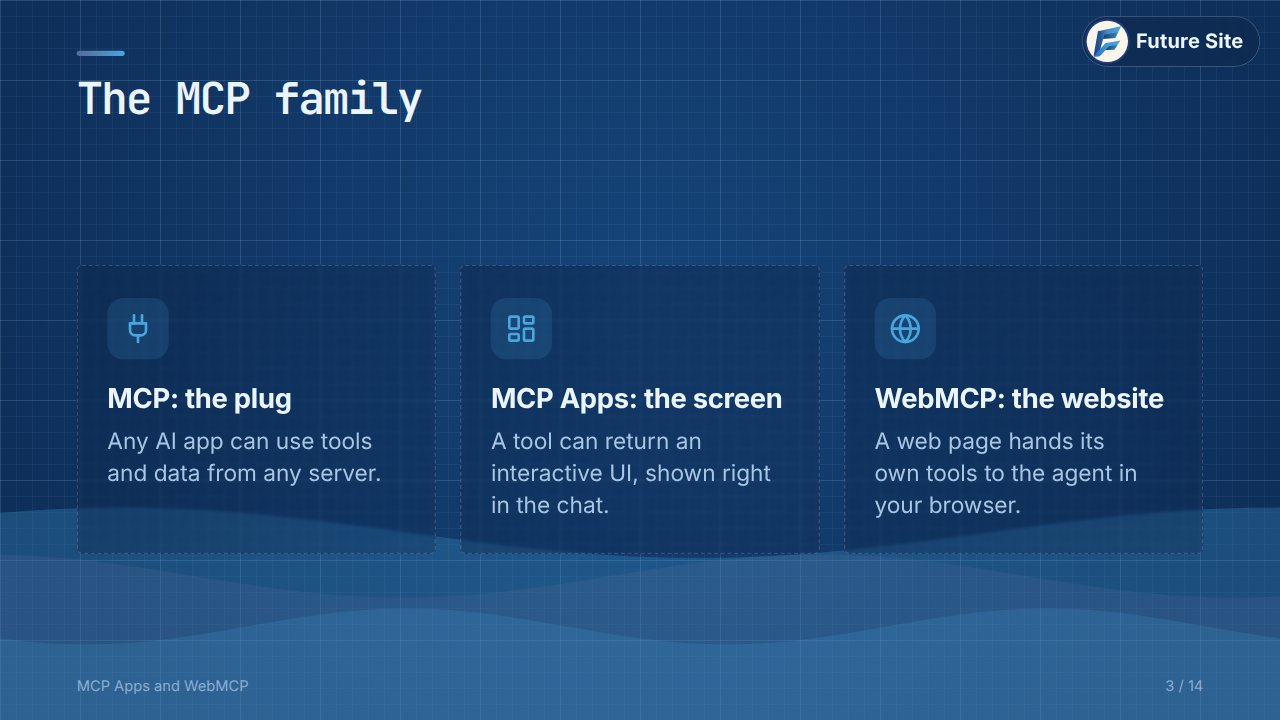
| What it is | Where it runs | |
|---|---|---|
| MCP | The plug: one standard so any AI app can use tools and data from any server | Your MCP server |
| MCP Apps | The screen: a tool can return an interactive UI, shown in the chat | A sandboxed frame in the host |
| WebMCP | The website: the page offers its own tools to the browser's agent | The user's browser tab |
MCP Apps: a UI inside the conversation
MCP Apps is the first official extension to the Model Context Protocol. It grew out of work by OpenAI and the MCP-UI project, and hosts like Claude, ChatGPT and VS Code can already show MCP Apps.
The idea is simple: a tool can link to a user interface, which is just a small HTML page. The host shows that page right inside the conversation: a chart you can filter, a form, a map, a seat picker. And it isn't a static picture. When you click, the interface calls your tools.
Step 1: the tool points to a UI
On your server, nothing much changes. It's a normal tool with a name, a description and an input schema. The only new part is one link in the tool's metadata:
{
  "name": "show_flights",
  "description": "Show flights to pick from",
  "inputSchema": { ... },
  "_meta": {
    "ui": {
      "resourceUri": "ui://flights/app.html"
    }
  }
}
The ui:// address points to an MCP resource on the same server: your HTML page. Because the page is declared up front, the host can fetch it and check it before anything runs.
Step 2: what happens in the chat
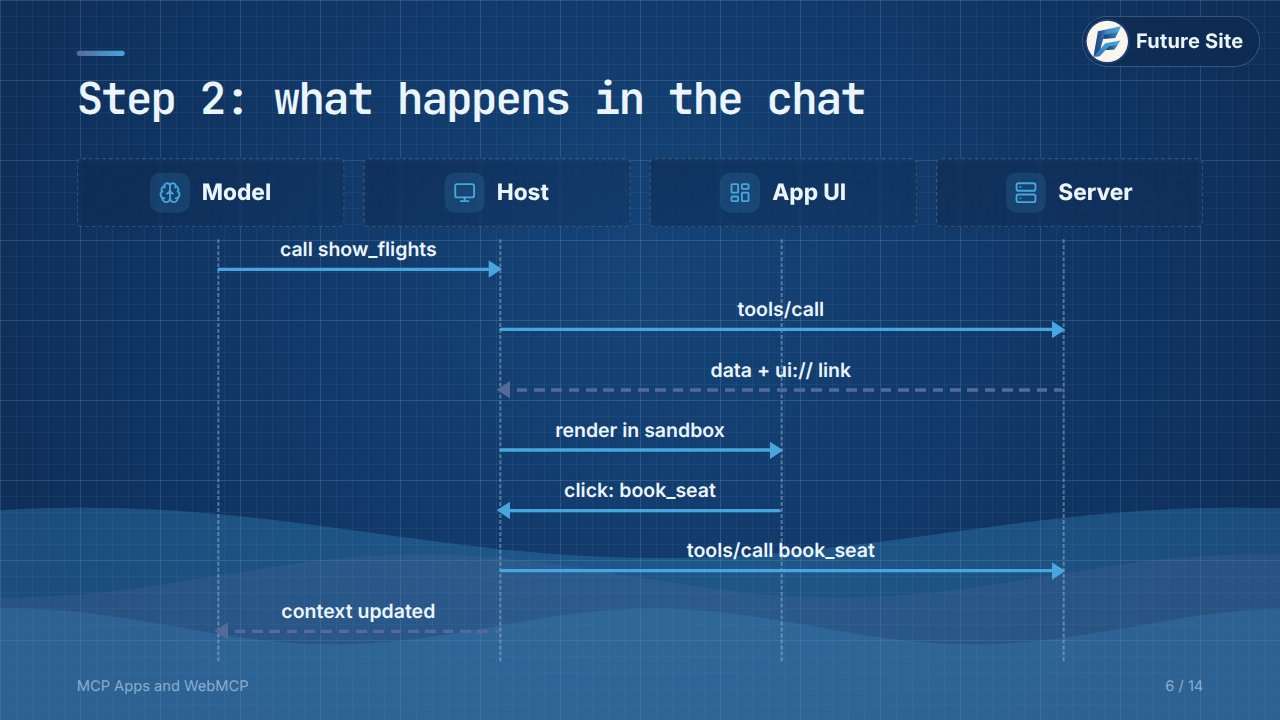
- The model decides to call
show_flights, and the host sends the call to your server. - The server answers with the data and the link to its interface.
- The host renders the page in a sandbox and hands it the result.
- You click a seat. The page asks the host to call
book_seat, and the host forwards it to the server. - The model is told what you picked, so the conversation carries on naturally.
Step 3: the page talks back
Inside the page, a small library from the MCP project handles the messages with the host:
import { App } from "@modelcontextprotocol/ext-apps";

const app = new App({ name: "Flights" });

app.ontoolresult = (r) => showFlights(r);
await app.connect();

seat.onclick = () =>
  app.callServerTool({
    name: "book_seat",
    arguments: { seat: "12A" },
  });
When the tool result arrives, you draw it. When the user clicks, you call a server tool through the host. It's plain HTML and JavaScript, so you can use React or no framework at all.
Why it's safe to run
Running someone else's interface inside your chat sounds risky, so MCP Apps is built with several layers of protection:
- Sandboxed frame. The page runs in an isolated iframe, with no access to the host or your other chats.
- Everything goes through the host. Every tool call the page makes passes through the host, which can log it or ask you first.
- Declared up front. The HTML is known before it runs, so hosts can review it.
- Locked-down network. The app lists the domains it needs; everything else is blocked.
WebMCP: tools that live in the web page
Now the other direction. With WebMCP, the tools live in the web page itself, registered in its own JavaScript. The agent in your browser calls them directly instead of guessing at buttons. They run in your tab, with your login and your cart, so there is no extra server to build or host.
One honest note: WebMCP is a draft web standard, proposed by engineers at Google and Microsoft, with an early preview in Chrome. Expect the details below to change.
Register a tool in the page
navigator.modelContext.registerTool({
  name: "searchFlights",
  description: "Search flights by city and date",
  inputSchema: {
    type: "object",
    properties: {
      to: { type: "string" },
      date: { type: "string" },
    },
  },
  async execute({ to, date }) {
    return await api.search(to, date);
  },
});
It looks familiar on purpose: a name, a description and an input schema, the same shape as an MCP tool. execute is the function that does the work, right in the page, and it can reuse the code your search button already calls.
Or just mark up a form
If you'd rather not write JavaScript, the draft also has a declarative way: add a tool name and a description to a form you already have.
<form toolname="searchFlights"
      tooldescription="Search flights">
  <input name="to" required>
  <input name="date" type="date">
  <button>Search</button>
</form>
The browser builds the schema from the inputs, and you can watch the agent fill in the form, just as a person would.
WebMCP in action
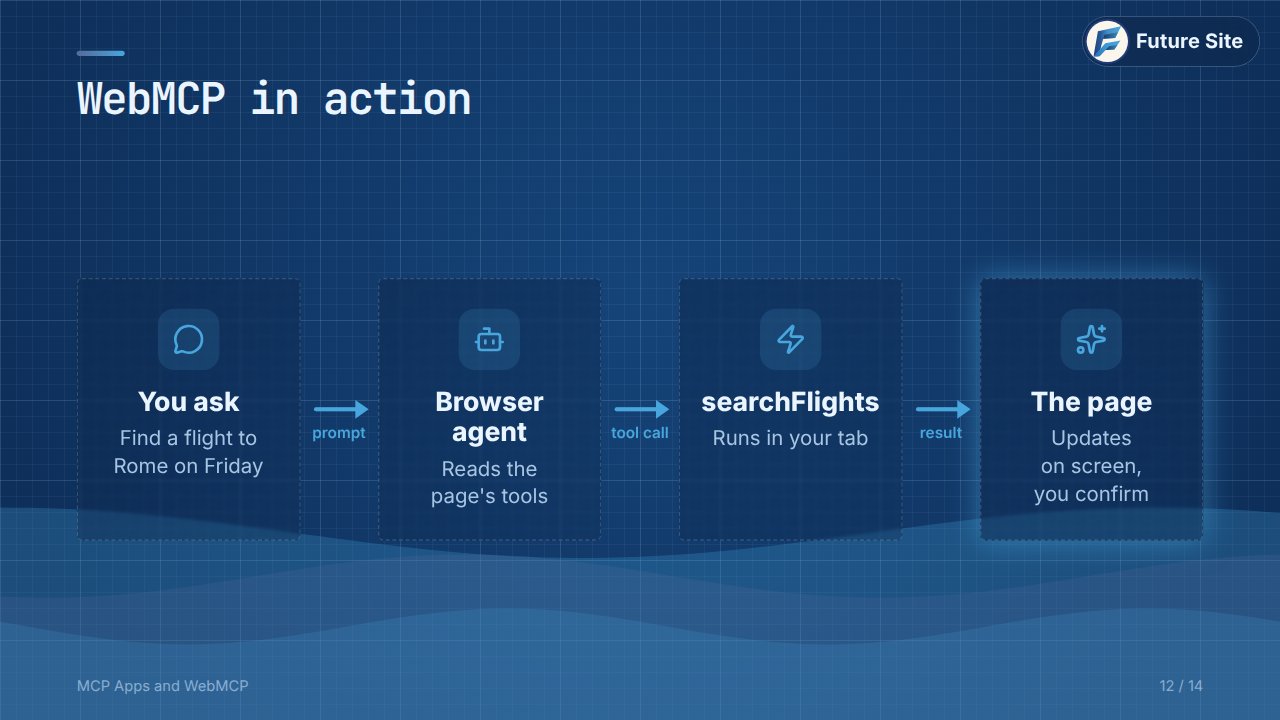
You ask for a flight to Rome on Friday. The agent reads the tools the page offers, calls searchFlights in your tab, and the page updates on screen so you can see the result and confirm. No guessing, no broken clicks.
Which one when?
| Pick MCP Apps when… | Pick WebMCP when… |
|---|---|
| You already have an MCP server | You own a website or web app |
| Your users work in Claude, ChatGPT or another chat app | Your users are already on your page |
| You need a rich UI inside the conversation | You want browser agents to use your site reliably |
You can also do both: they share the same idea of a tool.
Practice
- In MCP Apps, which field of a tool points to its interface, and what does the address start with?
- Where does an MCP App's page run, and why can't it read your other chats?
- A user clicks a button in an MCP App. Who forwards the resulting tool call to the server?
- In WebMCP, which browser object do you register tools on?
- Your company has a booking website but no MCP server. Which of the two would you try first, and why?
Answers: 1. _meta.ui.resourceUri, starting with ui://. 2. In a sandboxed iframe inside the host, isolated from the host and other chats. 3. The host. 4. navigator.modelContext. 5. WebMCP: the tools live in your existing pages and run in the user's session, with no server to build (keeping in mind that it's still a draft).
Next
Next episode: MCP security, with prompt injection, OAuth and least privilege. All episodes are on the MCP Explained series page.